English





Using tmux: A Terminal Multiplexer for Power Users
How to Use tmux: A Terminal Multiplexer for Power Users
tmux is a game-changing terminal multiplexer that boosts productivity by managing multiple sessions, panes, and persistent workflows in one terminal. Ideal for developers, sysadmins, or anyone working on remote servers, tmux keeps your tasks organized and resilient. This guide simplifies tmux usage with practical examples and tips to supercharge your command-line efficiency.
What is tmux?
tmux is an open-source terminal multiplexer that enables:
Multiple shell sessions inside one terminal
Persistent sessions (even after disconnection)
Pane and window splitting
Session sharing across users
Easy switching between tasks without leaving the terminal
It’s like having a tiling window manager for your terminal, available anywhere—even over slow SSH connections.
Installing tmux
On Debian/Ubuntu:
On CentOS/RHEL:
On macOS:
Getting Started with tmux
To start a new tmux session:
You’re now inside a new session. But to use it effectively, you’ll need to know some keybindings.
Default prefix: Ctrl + b
All tmux commands are triggered with a prefix key, which by default is:
So Ctrl + b, then % creates a vertical split, and so on.
Essential tmux Commands
| Command | Action |
|---|---|
| tmux | Start a new session |
| tmux new -s mysession | Start a named session |
| tmux attach -t mysession | Reattach to a session |
| tmux ls | List sessions |
| tmux kill-session -t mysession | Kill a session |
| exit | Exit current pane/window (or kill via tmux kill-pane) |
Advanced Tips and Tricks
1. Named Sessions for Persistence
tmux new -s setup-server("name-your-session")→ you have two horizontal panels: top and bottom
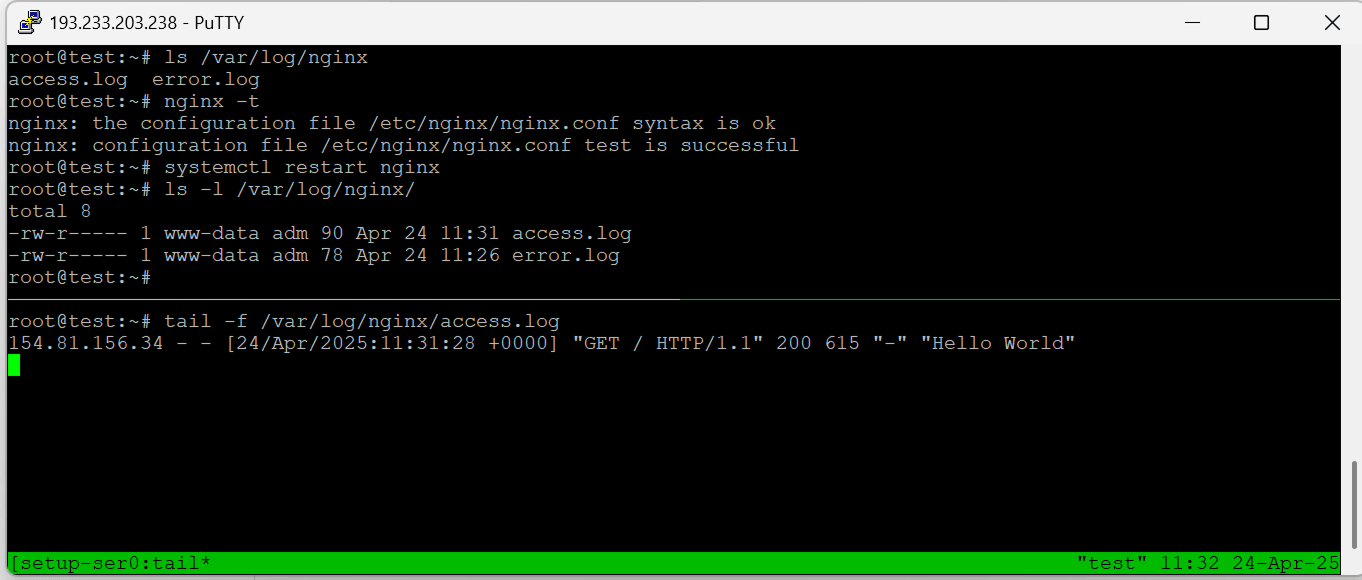 Reattach anytime:
🧮 2. Save Time with Sessions Scripts
Create .tmux.conf or shell scripts to automate setup:
#!/bin/bash
 tmux new-session -d -s dev
 tmux send-keys -t dev 'cd ~/project && vim' C-m
 tmux split-window -h
 tmux send-keys 'htop' C-m
 tmux attach -t dev
🧬 3. Share Session with Another User
Allow collaborative terminal sessions (requires shared permissions):
sudo chmod +s /usr/bin/tmux
 tmux -S /tmp/shared attach
⚙ 4. Customize .tmux.conf
Example:
# Set prefix to Ctrl + a (like GNU screen)
unbind C-b
 set-option -g prefix C-a
 bind-key C-a send-prefix
# Mouse support
set -g mouse on
# Better colors
set -g default-terminal "screen-256color"
Reload config:
Use Case: tmux Over SSH
When managing a remote VPS via SSH:
Connect via SSH
Start a tmux session:
Run updates or long processes (e.g., apt upgrade)
Disconnect any time—session persists
Reconnect later:
💡 This is invaluable for unreliable connections, especially over mobile or satellite links.
tmux is one of the most powerful tools in the command-line arsenal. Whether you’re coding, monitoring servers, or managing multiple tasks remotely, tmux offers productivity, persistence, and precision. Once mastered, it becomes indispensable—saving time, preserving sessions, and organizing your terminal workflow like a pro.
Conclusion
tmux transforms your terminal into a powerful, flexible workspace, perfect for multitasking, remote server management, or collaborative coding. With the examples and tips above, you can quickly set up sessions, automate workflows, and maintain persistent tasks. Whether you’re a developer or sysadmin, tmux streamlines your command-line experience, saving time and boosting efficiency.
Related Posts