English





Connecting a Custom Domain to Your AvaHost Cloud App
A custom domain gives your Cloud App a familiar address on a domain you own instead of using only its default avahost.app address. This guide shows how to point a domain to your app, verify the DNS configuration in AvaHost, and apply the new address to the application.
The example uses a domain managed through Namecheap, but the process is not specific to Namecheap. Your registrar or DNS provider may use different names for its menus and fields, such as DNS, DNS records, Zone editor, or Manage zone. The record type and values remain the same.
Before You Begin
Make sure you have:
- A deployed and running AvaHost Cloud App.
- A registered domain whose DNS records you can manage.
- The app’s default address, such as
my-app.avahost.app.
This guide connects www.my-personal-domain.site to my-app.avahost.app. Replace both example addresses with your own domain and app address.
Connect Your Custom Domain
1. Open your domain’s DNS settings
Sign in to the service that manages your domain’s DNS. This is usually your domain registrar, but it may be a separate DNS provider if your domain uses custom nameservers. Open the DNS records or zone editor for the domain you want to connect.
In our Namecheap example, these controls are under Advanced DNS. Other providers organize them differently, so look for the page where you can add or edit records such as A, CNAME, and TXT records.
2. Point a CNAME record to your Cloud App
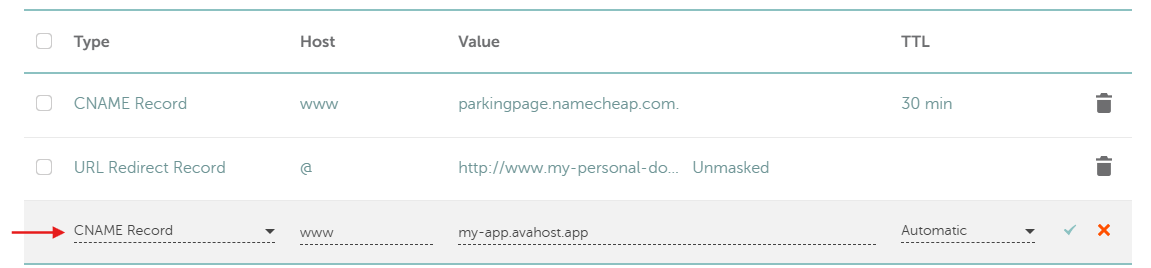
Create a CNAME record for the hostname you want to use. For the www.my-personal-domain.site address in this example, configure the record as follows:
- Type: CNAME
- Host or Name:
www - Value, Target, or Points to:
my-app.avahost.app - TTL: Automatic or the provider’s default value
Enter only the app hostname in the target field. Do not include https://, a port, or a path. If your DNS provider has a proxy option, set the record to DNS only.
If a record for www already points to a parking page or another service, edit or delete that record first. A hostname cannot have two conflicting CNAME records. Save the new record before leaving the page.
Note: some DNS providers display the target with a trailing dot, such as
my-app.avahost.app.. This is a normal fully qualified domain name and does not change the destination.
Important: the host
wwwconfigureswww.my-personal-domain.site, notmy-personal-domain.site. You must enter the same full hostname in AvaHost. A URL redirect from the root domain towwwdoes not count as a CNAME for the root domain.
3. Open the app’s Domain tab
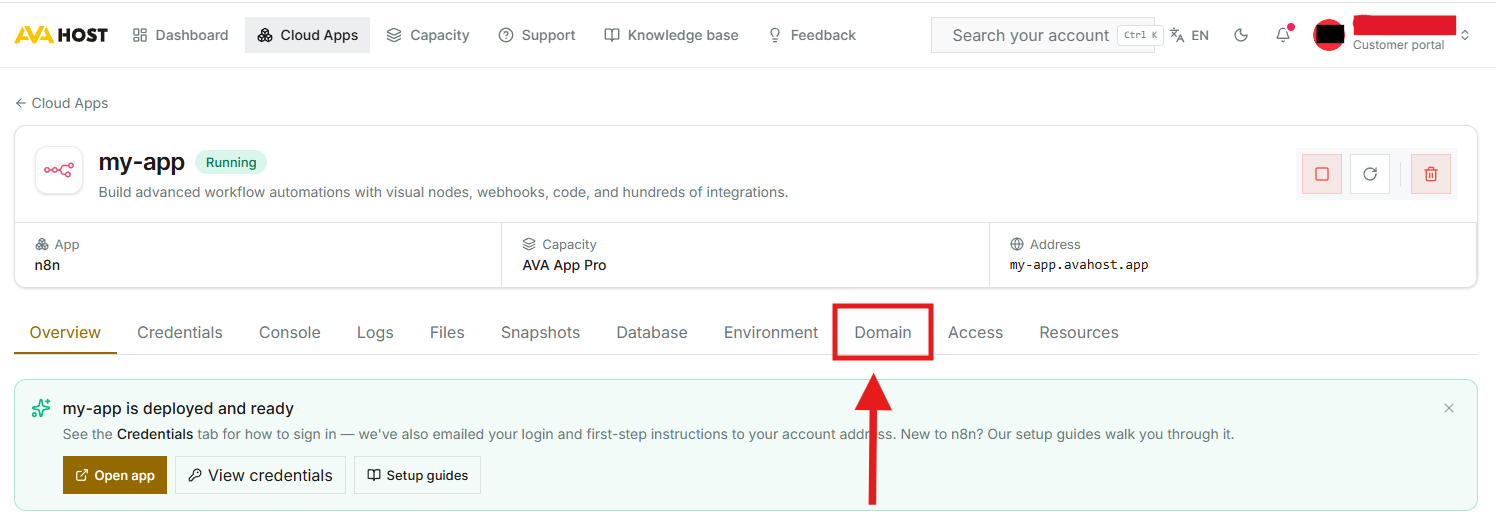
Sign in to the AvaHost Cloud Apps dashboard. Open Cloud Apps, select the app you want to connect, and choose the Domain tab.
The app summary shows its default address. Confirm that this is the same address used as the target of your CNAME record.
4. Add and verify the custom domain
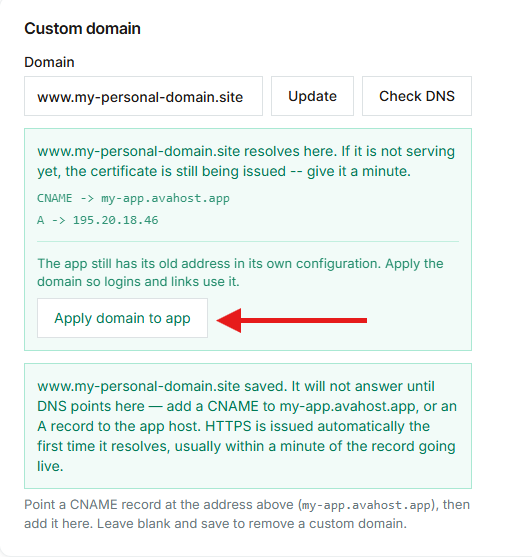
In the Custom domain section, enter the complete hostname configured in your DNS record. In this example, enter www.my-personal-domain.site, including www.
Click Update to save the domain, then click Check DNS. DNS changes often appear within a few minutes, but propagation can take longer depending on your provider and the previous record’s TTL.
When the check succeeds, AvaHost confirms that the custom hostname resolves to the app. HTTPS is issued automatically the first time the record resolves, so the certificate may need an additional minute to become available.
Click Apply domain to app after the successful DNS check. This updates the application itself so that generated links, redirects, and login flows use the custom address.
5. Wait for the app to restart
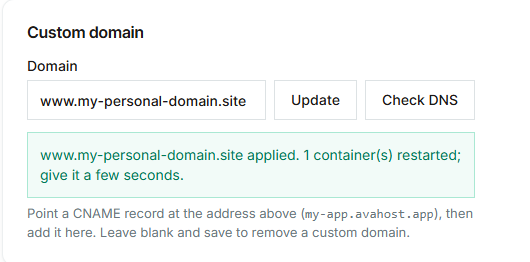
Applying the domain restarts the affected app container so the new configuration can take effect. AvaHost displays a confirmation when the domain has been applied.
Give the app a few seconds to restart. A temporary Not found page or connection error immediately after applying the domain does not necessarily indicate a DNS problem. Wait briefly and refresh the page.
6. Open the app at its custom address
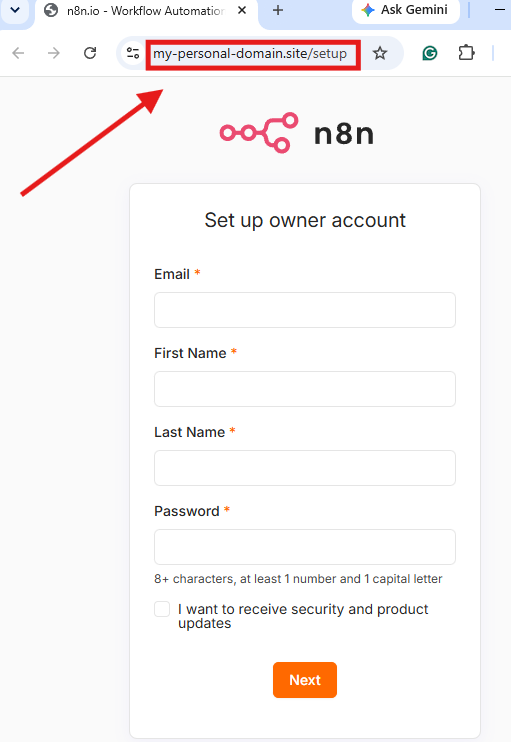
Open the new address using HTTPS, such as https://www.my-personal-domain.site. The app should now load through your custom domain. Complete any application-specific setup or sign in with your existing credentials.
Your Custom Domain Is Ready
Your Cloud App is now available at an address on your own domain, with HTTPS handled automatically by AvaHost. Keep the CNAME record in place so the domain continues to resolve to the app.
Related Posts