English





How to Manage Game Server
🎮 Gaming AVA: A Complete Guide to Setting Up Your Game VPS with AvaHost
Whether you’re looking to host your own game server, enjoy low-latency online gaming, or run a private multiplayer environment for friends — Gaming AVA by AvaHost is built to deliver high performance, stability, and full control.
In this guide, we’ll walk you through every step of the process:
- Choosing the right plan for your game (V Rising, Terraria, Valheim, and more)
- How to order and activate your Gaming server
- Connecting to your server and installing game-related software
- Optimization tips to keep your server fast and secure under heavy load
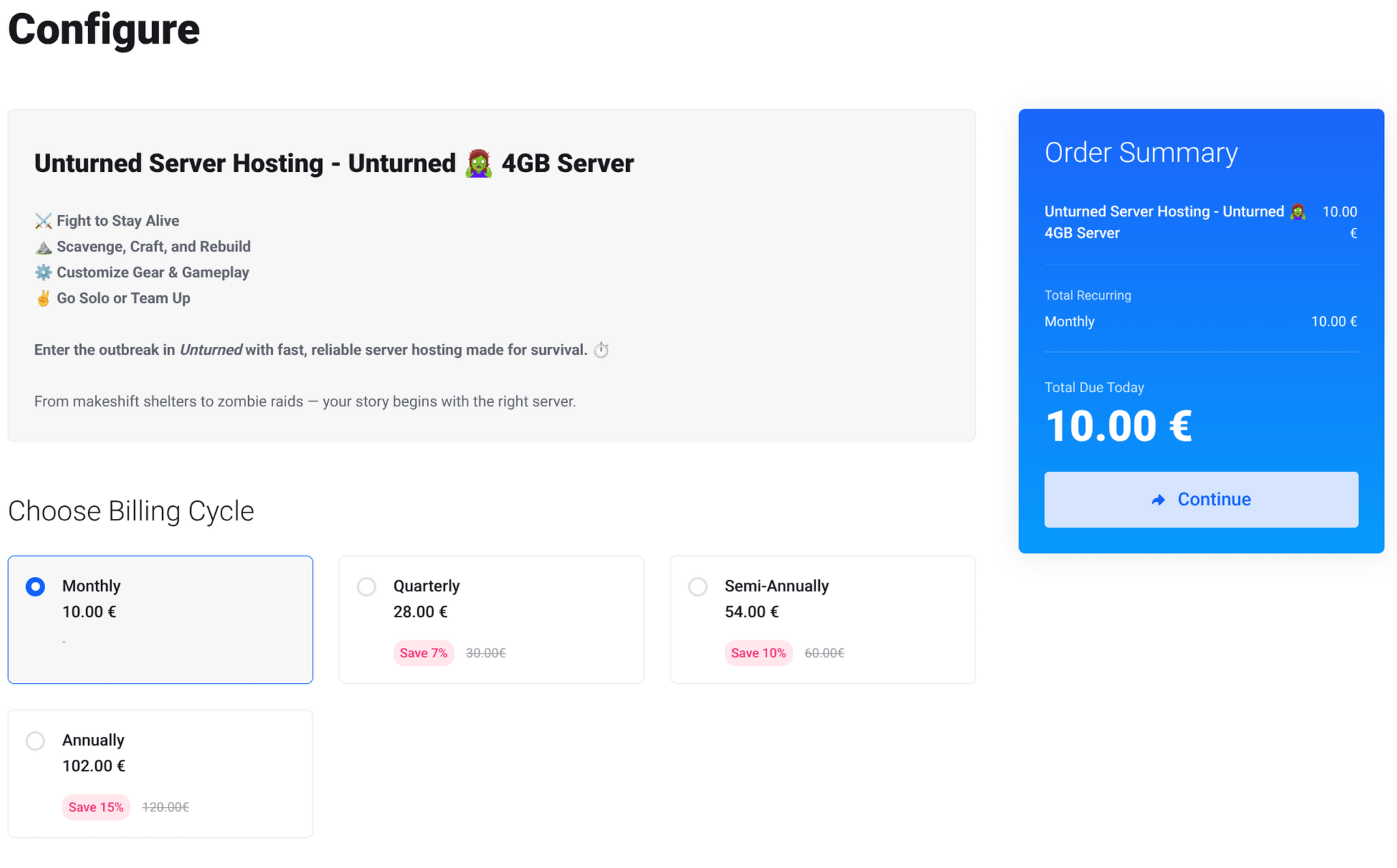
Choose tariff plan and proceed with the purchasing.
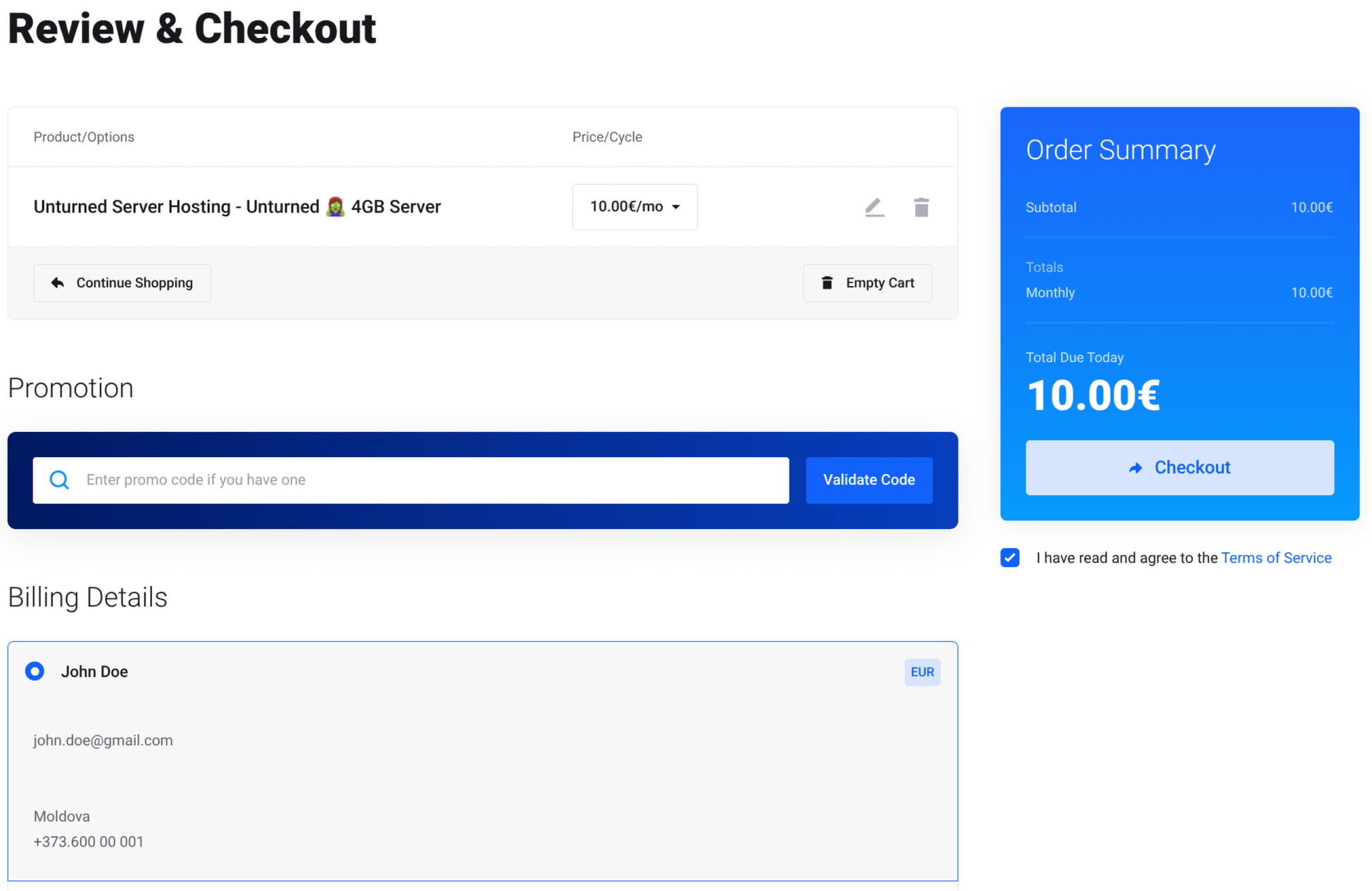
 Account registration
When customer first time order a Game Server an email with password setup is sent
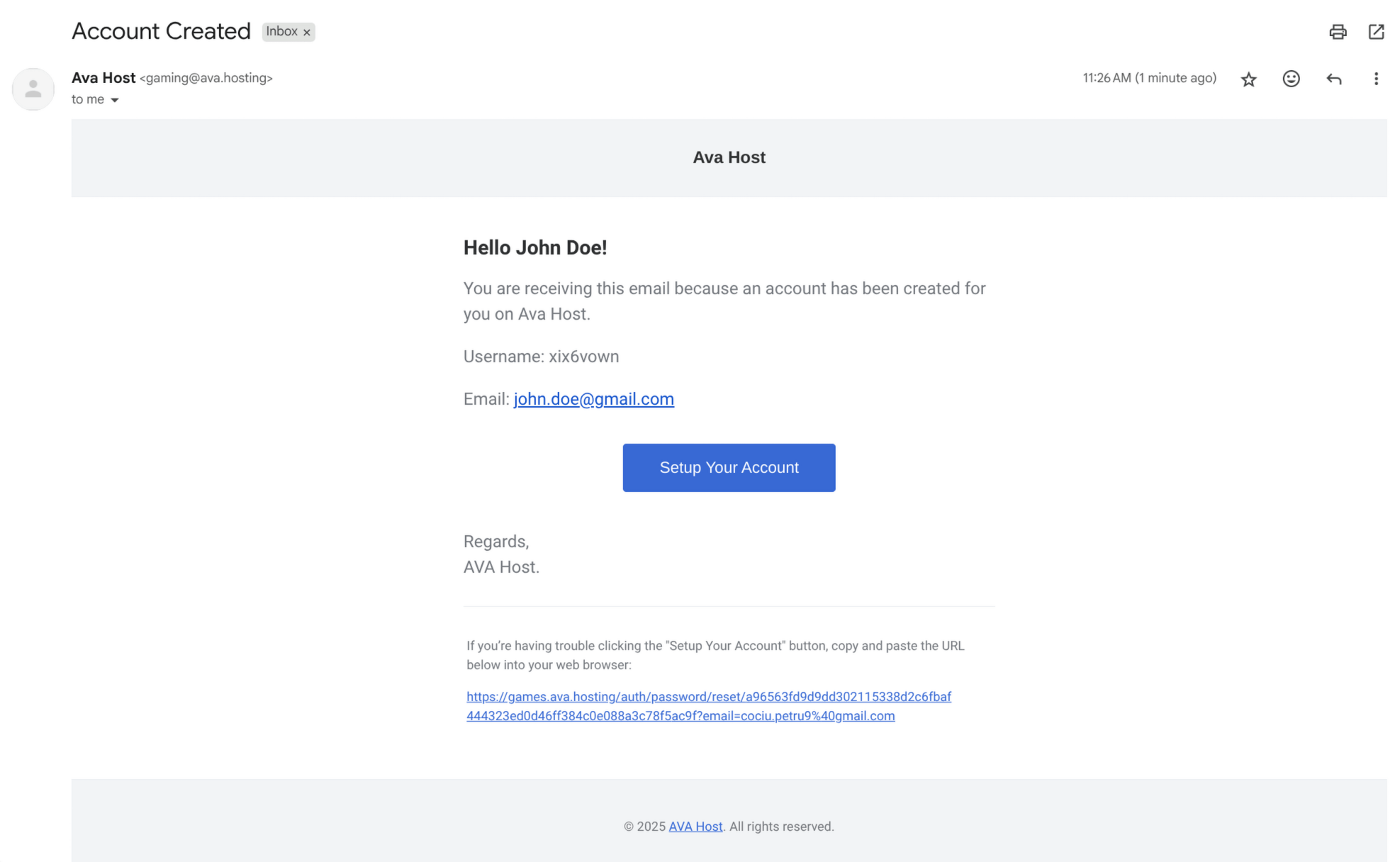
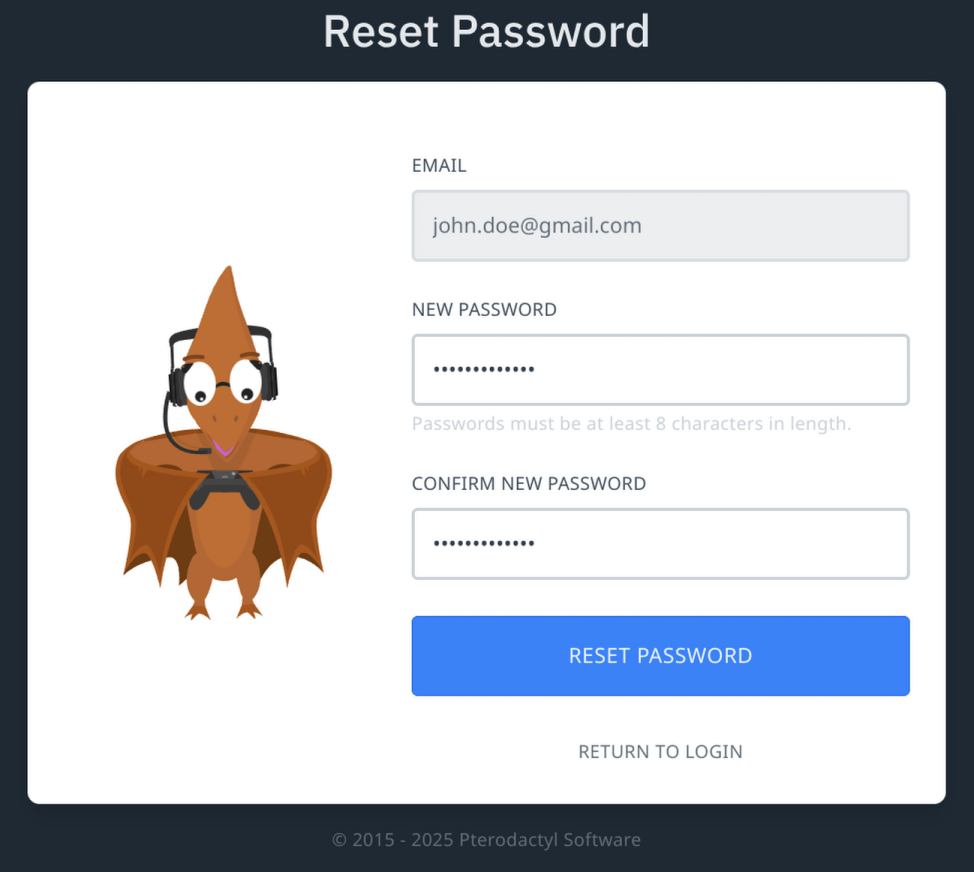
After customer will set up the password it will be redirected to Game Panel
The server is still in process of installing so the Management is not fully available. After server installation you will receive a confirmation email about successful server installation.
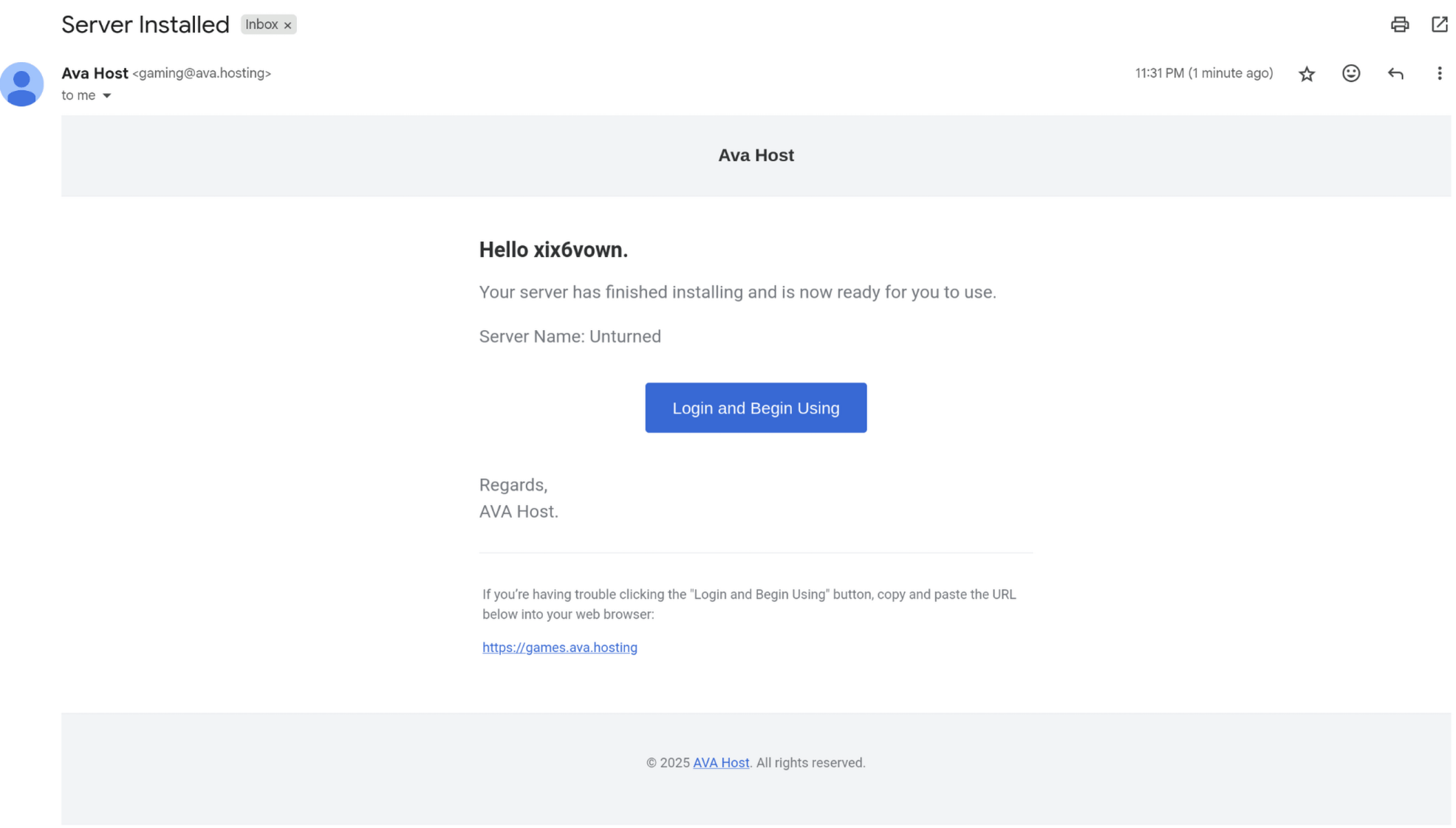
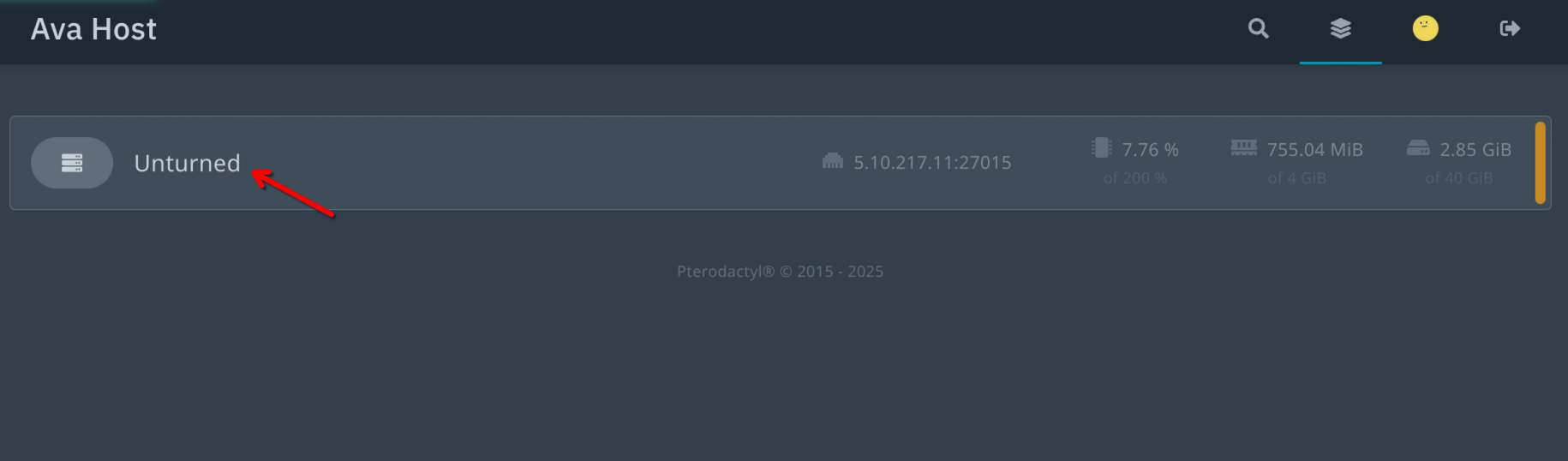
Clicking on server will open the server Console, from which the server can be Managed
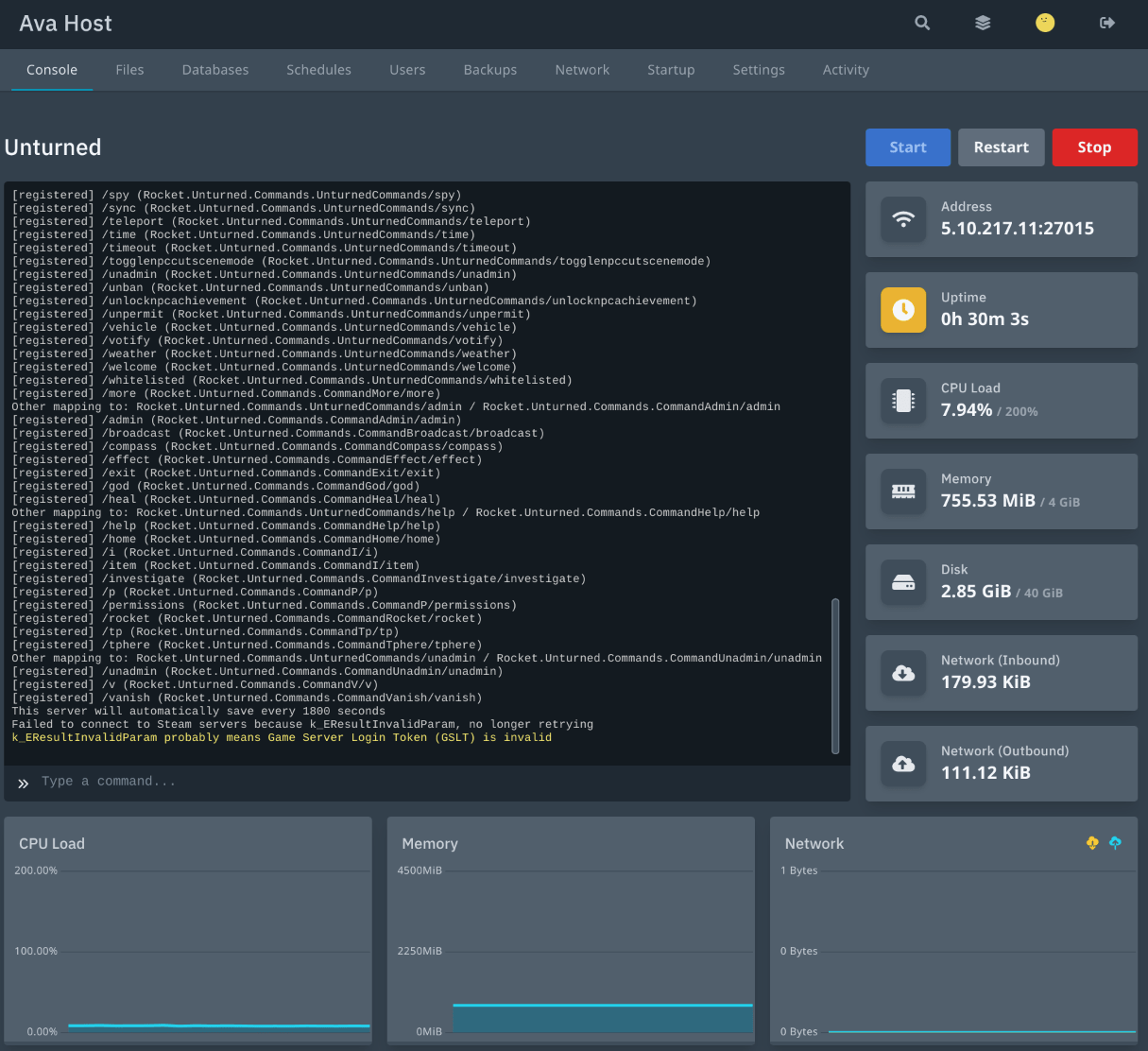
The Console view provides the live operations dashboard: it streams server output in real time, accepts commands customers type into the prompt, and offers one-click power actions (Start, Restart, Stop). A sidebar shows the server’s public address and quick-updating metrics for uptime, CPU, RAM, disk and bandwidth, while the graphs below capture recent resource use for fast troubleshooting.
Files
Opens a web-based file manager where the user can:
- Browse folders and directory structure
- Upload and download files
- Edit text files directly in the browser
- Change file and folder permissions
Databases
Allows the user to:
- Create or delete MySQL/MariaDB databases
- Manage databases tied specifically to this server instance
Schedules
Provides an internal scheduler that enables:
- Chaining tasks such as power actions, command execution, or backup creation
- Running actions based on timers or time intervals
- Automating routine server maintenance and operations
Users
The sub-user panel where the customer can:
- Invite other users
- Toggle granular rights per tab or specific action
Backups
Allows the user to:
- View a list of existing backup archives
- Start new backups on demand
- Download or restore backups as needed
Network
Displays:
- IP addresses
- Port allocations assigned to the server
Startup
Shows the egg’s environment variables and launch parameters.
Also allows the user to:
- View the raw Docker command
- Set up or modify the server password
Settings
Covers global server properties, including:
- Server name
- SFTP connection details
- Options to rename the server
- Launch SFTP
- Reinstall the server
Activity
Provides an audit log that:
- Records every event
- Tracks all changes in the server configuration
Related Posts