 English





How to Deploy OpenClaw on AvaHost VPS in One Click | Ubuntu 22.04
Most AI assistants store your data on their servers, charge per message, and go offline the moment you close the tab. OpenClaw works differently — it runs on your own VPS, connects to Telegram, WhatsApp, Slack, and Discord, and stays online 24/7.
AvaHost now offers OpenClaw as a one-click template on Ubuntu 22.04.
What Is OpenClaw?
OpenClaw is an open-source, self-hosted AI assistant. You connect it to your preferred AI provider — Claude (Anthropic) or ChatGPT (OpenAI) — and it becomes your personal assistant across all your messaging apps.
What it supports:
- Telegram, WhatsApp, Slack, Discord and 10+ platforms
- Claude, ChatGPT, and local models via Ollama
- Google Workspace — Calendar, Gmail, Drive
- Web browsing, file management, terminal commands
Why self-host:
- Your conversations never leave your server
- No per-message fees — flat VPS cost only
- Runs 24/7 without your computer being on
- You control which AI model it uses
What You’ll Need
- An active AvaHost account — ava.hosting
- A VPS plan (minimum 2 GB RAM recommended)
- An API key from Anthropic or OpenAI
Step 1 — Log Into Your AvaHost Dashboard
Sign in at ava.hosting. You’ll land on the My Dashboard page showing your active services.
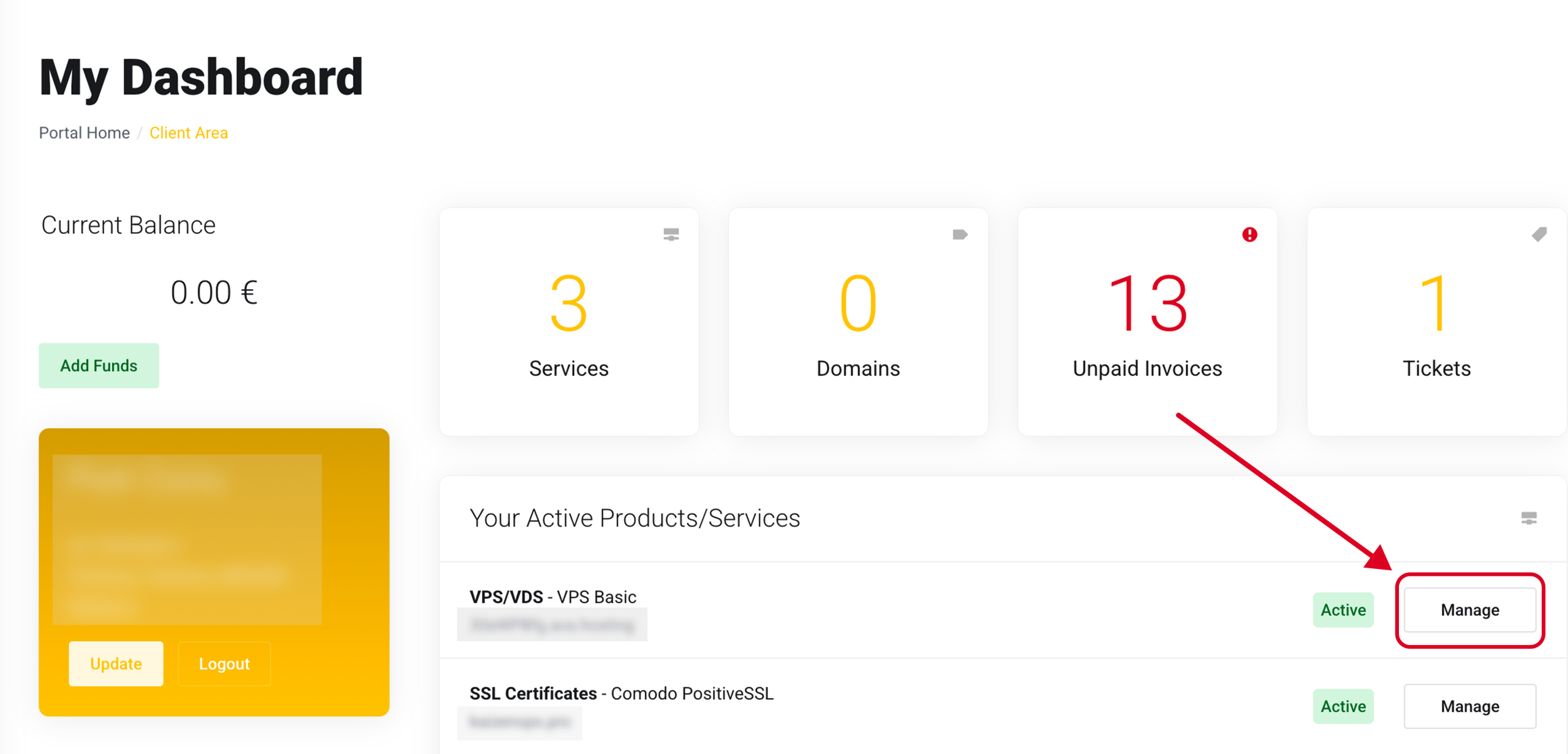
Find your VPS under Your Active Products/Services and click Manage.
Step 2 — Open Reinstallation
Inside your VPS panel, look at the Service Management section in the left sidebar. Click Reinstallation.
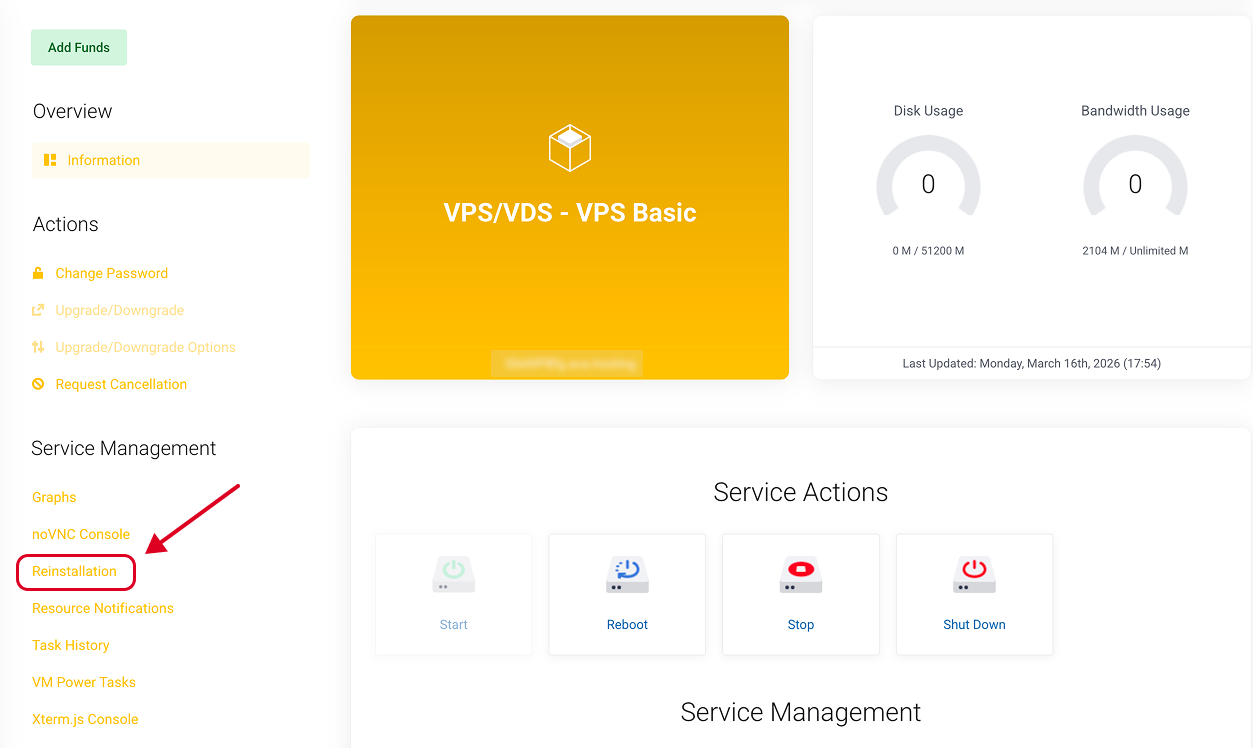
Heads up: Reinstallation wipes all existing data on the VPS. For a fresh VPS this step is completely safe.
Step 3 — Select the OpenClaw Template
You’ll see a grid of operating systems. Scroll to the Ubuntu section and click Ubuntu-22-04-OpenClaw-WebGateway.
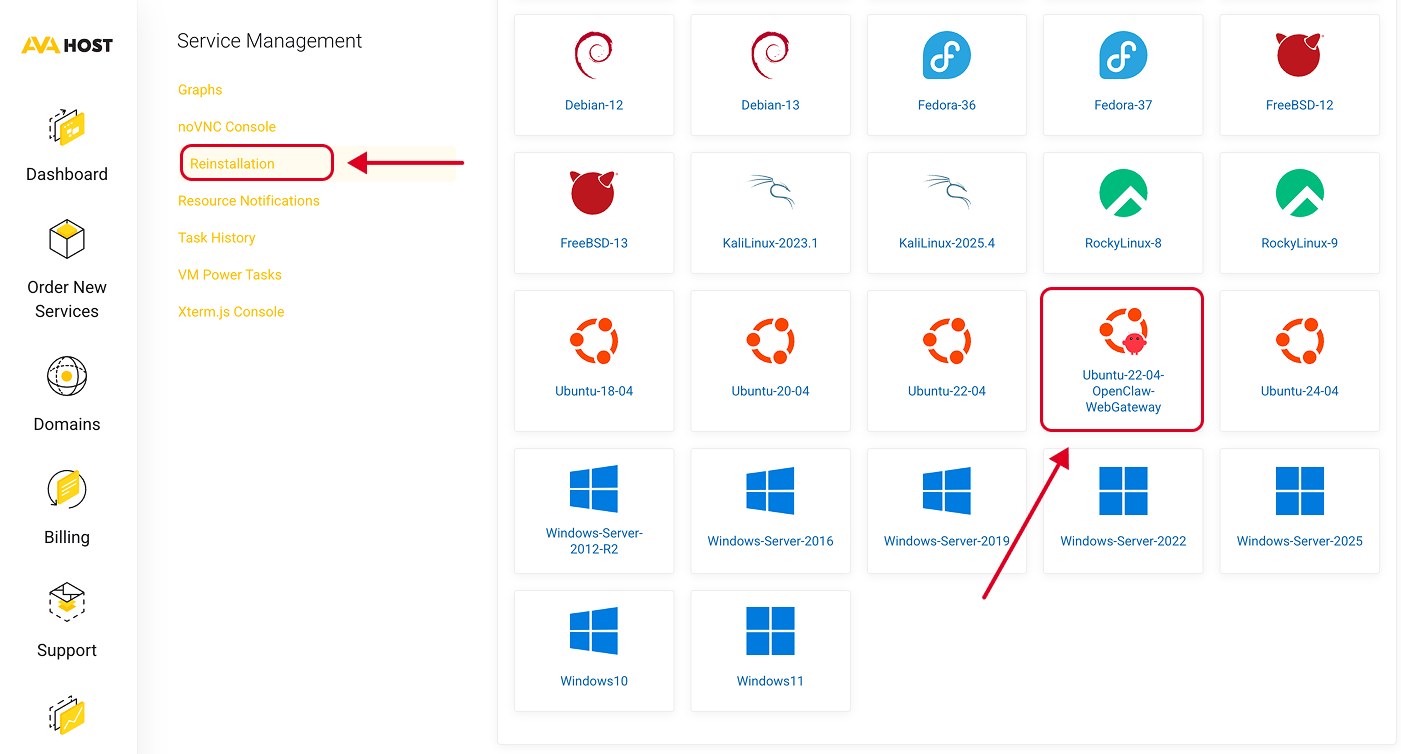
This template installs on Ubuntu 22.04 LTS and includes everything pre-configured:
- OpenClaw (latest stable version)
- Docker and Docker Compose
- WebGateway for browser access
- Firewall rules set up automatically
Confirm the selection. Installation takes 2–5 minutes.
Step 4 — Complete the Onboarding Wizard
Once your VPS is ready, open your browser and go to:
http://YOUR_VPS_IP:18789
You’ll see the OpenClaw onboarding wizard. Follow these steps:
- Choose your AI provider — Anthropic (Claude) or OpenAI (ChatGPT)
- Enter your API key — paste it from your provider’s dashboard
- Create your admin account — set email and password
- Connect your first platform — Telegram is the quickest to start
The whole setup takes about 3 minutes.
Step 5 — Connect Telegram
- Open Telegram → search @BotFather
- Send /newbot and follow the prompts to create a bot
- Copy the bot token you receive
- In OpenClaw dashboard → Integrations → Telegram → paste the token
- Start chatting with your bot