English





How to terminate a process under Linux
Terminating Processes in Linux with Confidence
Managing processes is a core skill for anyone running a Linux system, whether you’re maintaining a personal project or overseeing a high-performance application on ava.hosting’s robust VPS or dedicated servers. A process—an instance of a running program—can sometimes freeze, consume excessive resources, or need manual termination. Knowing how to identify and safely stop these processes ensures your system remains efficient and stable. For example, if a stuck web server process is slowing down your site, terminating it cleanly can restore performance without downtime. This guide covers the essential tools and methods to terminate processes in Linux.
What is a process under Linux?
A process is an instance of a running program. Each Linux process has a unique PID (Process ID), which is used to monitor or control it.
You may wish to terminate a process in the following cases:
- It consumes too many resources
- It is blocked or frozen
- You need to restart the service or application
- You want to manually stop a background script or daemon
Step 1: Identify the process
Before you terminate anything, you need to find the process’s PID. Here are a few methods:
Using ps
ps aux | grep process_name
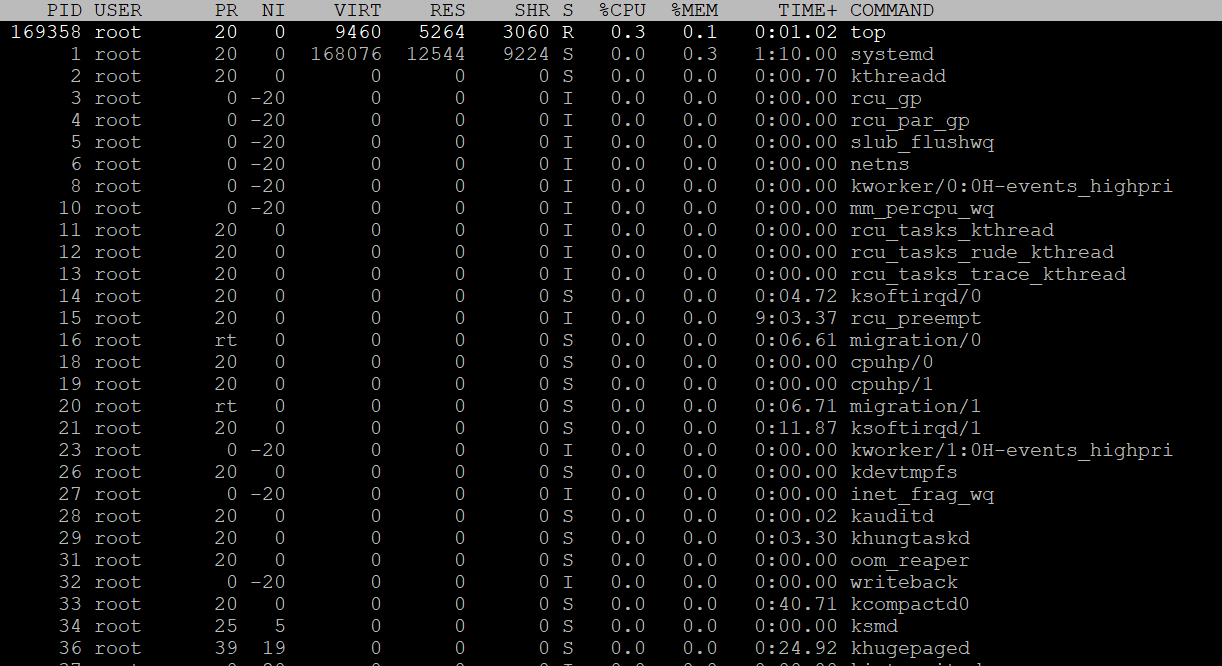
Use top or htop
- Launch top and search for the PID in the leftmost column.
- htop (if installed) offers an interactive, user-friendly interface.
Using pidof
pidof process_name
Step 2: Complete the process
Method 1: kill (by PID)
Send a termination signal (default SIGTERM – signal 15):
kill PIDMethod 2: kill -9 (Force Termination)
If the process does not stop with a normal kill signal, use SIGKILL (signal 9):
kill -9 PIDMethod 3: killall (by name)
To terminate all processes with a specific name:
killall process_nameForced version:
killall -9 firefoxMethod 4: pkill (Pattern Matching)
pkill matches process names with regex patterns:
pkill process_nameForced:
pkill -9 process_nameMethod 5: xkill (for GUI applications)
- Run:
xkill - Click on the window you wish to close.
Common signals
| Signal | Number | Description |
|---|---|---|
| SIGTERM | 15 | Graceful stop |
| SIGKILL | 9 | Immediate forced stop |
| SIGHUP | 1 | Hang up / restart daemon |
| SIGINT | 2 | Interrupt (Ctrl+C) |
Things to bear in mind
- Always try to terminate a process gracefully (
kill) before using more forceful methods likekill -9. - Be sure to check the PID so as not to kill an important system process.
- For critical services, use system management tools such as:
sudo systemctl restart apache2
If you frequently manage processes, install htop:
sudo apt install htop  # Debian/Ubuntu
sudo yum install htop  # CentOS/RHEL
Conclusion
Terminating processes in Linux is a vital skill for maintaining system performance. Whether you’re stopping a frozen Python script with pkill or restarting Nginx with systemctl to resolve a web server issue, these tools give you precise control. By mastering these commands and using ava.hosting’s reliable infrastructure, you can keep your Linux environment running smoothly.
Related Posts