English





A Guide to Using the dpkg Command on Linux
The dpkg command is a core tool for managing .deb packages in Debian-based Linux distributions, including Ubuntu and Linux Mint. While tools like apt and synaptic offer more automation and user-friendliness, dpkg gives you precise, low-level control over package installation, removal, and inspection.Whether you’re a Linux beginner or a system administrator, understanding how to use dpkg can help you debug issues, manually install packages, and manage software outside standard repositories.
What Is dpkg?
dpkg stands for Debian Package and is a command-line tool used to install, configure, remove, and inspect .deb packages. Unlike apt, it does not automatically resolve dependencies, making it more direct but potentially more error-prone if used carelessly.
Basic dpkg Commands
Install a .deb Package
sudo dpkg -i package-name.deb
This command installs a .deb file. If dependencies are missing, run:
sudo apt-get install -f
This will fix broken dependencies by downloading missing packages.
Remove a Package
Remove a package but keep configuration files:
sudo dpkg -r package-name
Remove a package and its config files:
sudo dpkg -P package-name
List Installed Packages
dpkg -l
This lists all installed packages in a tabular format, including:
- Status (e.g., ii for installed)
- Package Name
- Version
- Architecture
- Description
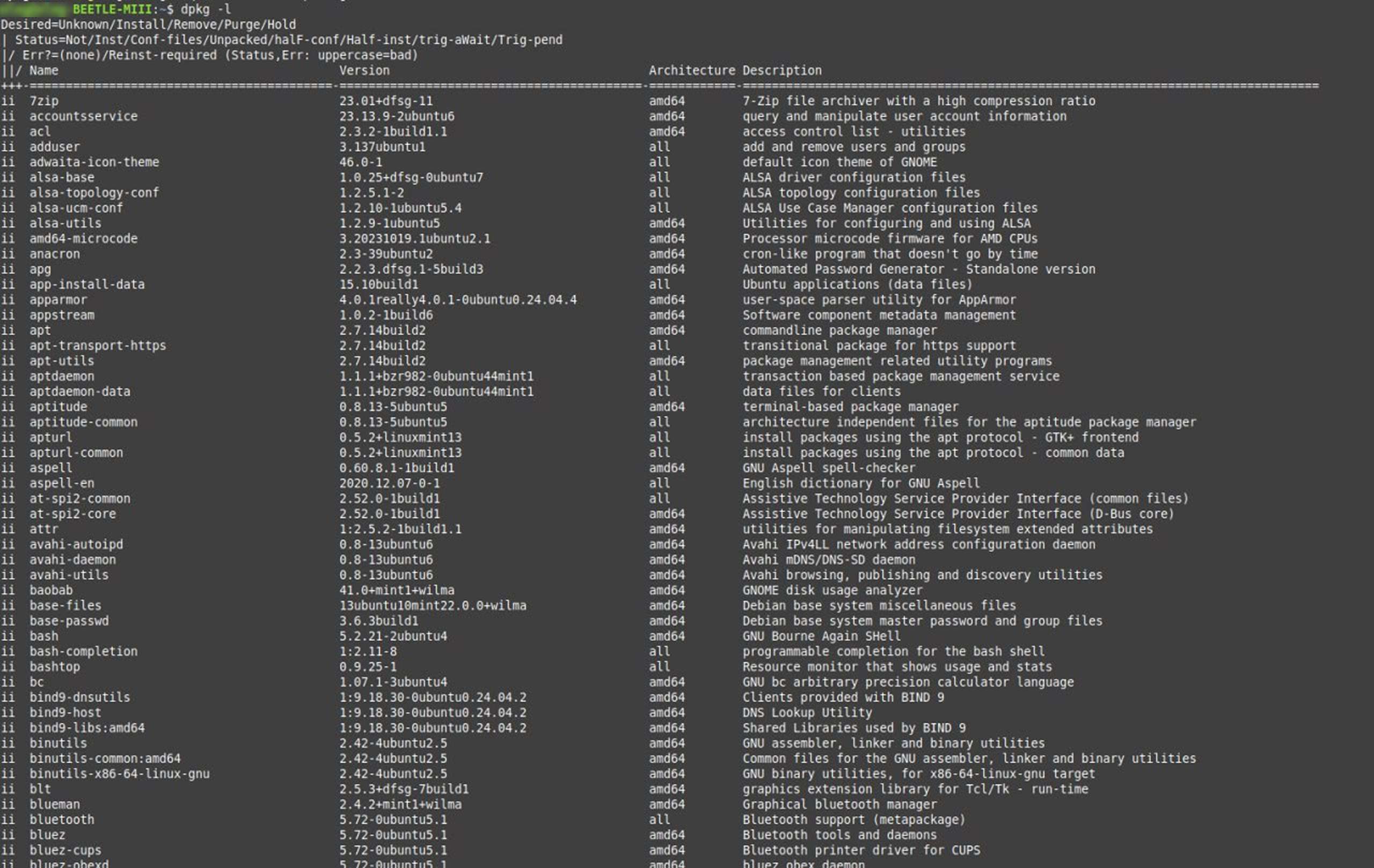
This screenshot shows how dpkg -l outputs the full list of packages currently installed on the system. You can scroll or filter this list using grep:
dpkg -l | grep apache
Inspect a .deb File
View package metadata without installing:
dpkg -I package-name.deb
List files contained in the .deb:
dpkg -c package-name.deb
Advanced Tools Related to dpkg
dpkg works together with various companion tools:
- dpkg-query: Query package information
- dpkg-deb: Create, extract, or inspect .deb files
- dpkg-divert: Manage file overrides
- dpkg-statoverride: Set file permissions overrides
These are useful for packaging, debugging, and low-level package management.
Common Pitfalls
- dpkg does not resolve dependencies. If you install a package that relies on others, you must manually resolve them or use apt afterward.
- It’s a good practice to combine dpkg -i with apt-get install -f when installing packages from third-party sources.
- Avoid using dpkg alone unless you know what you’re doing—wrong usage can break your package manager state.
Summary
The dpkg command is an essential tool in the Debian package ecosystem. While it’s not beginner-friendly compared to apt, it’s powerful and flexible, especially when you need to:
- Install local .deb files
- Audit or troubleshoot package installations
- Perform low-level package operations
Understanding dpkg empowers you to take full control of your Linux environment.
Related Posts